1. Log in (join a room)
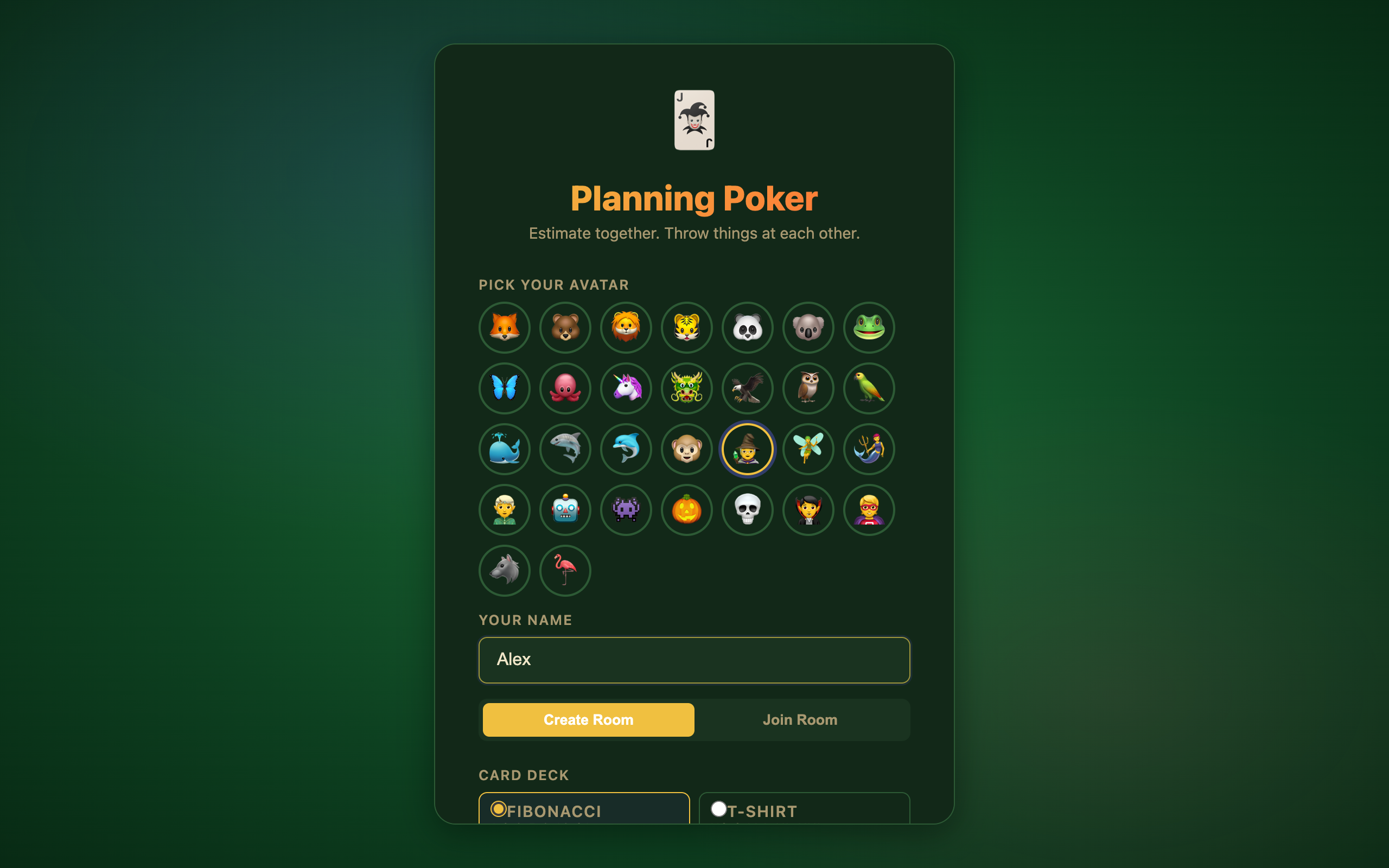
There is no password. Pick an avatar, enter your name, and either create or join a room.
Create a new room
- Choose an avatar from the grid.
- Enter your name.
- Leave Create Room selected.
- Pick a card deck (Fibonacci or T-Shirt sizes).
- Click Create Room.
You become the moderator automatically when you create a room.
Join an existing room
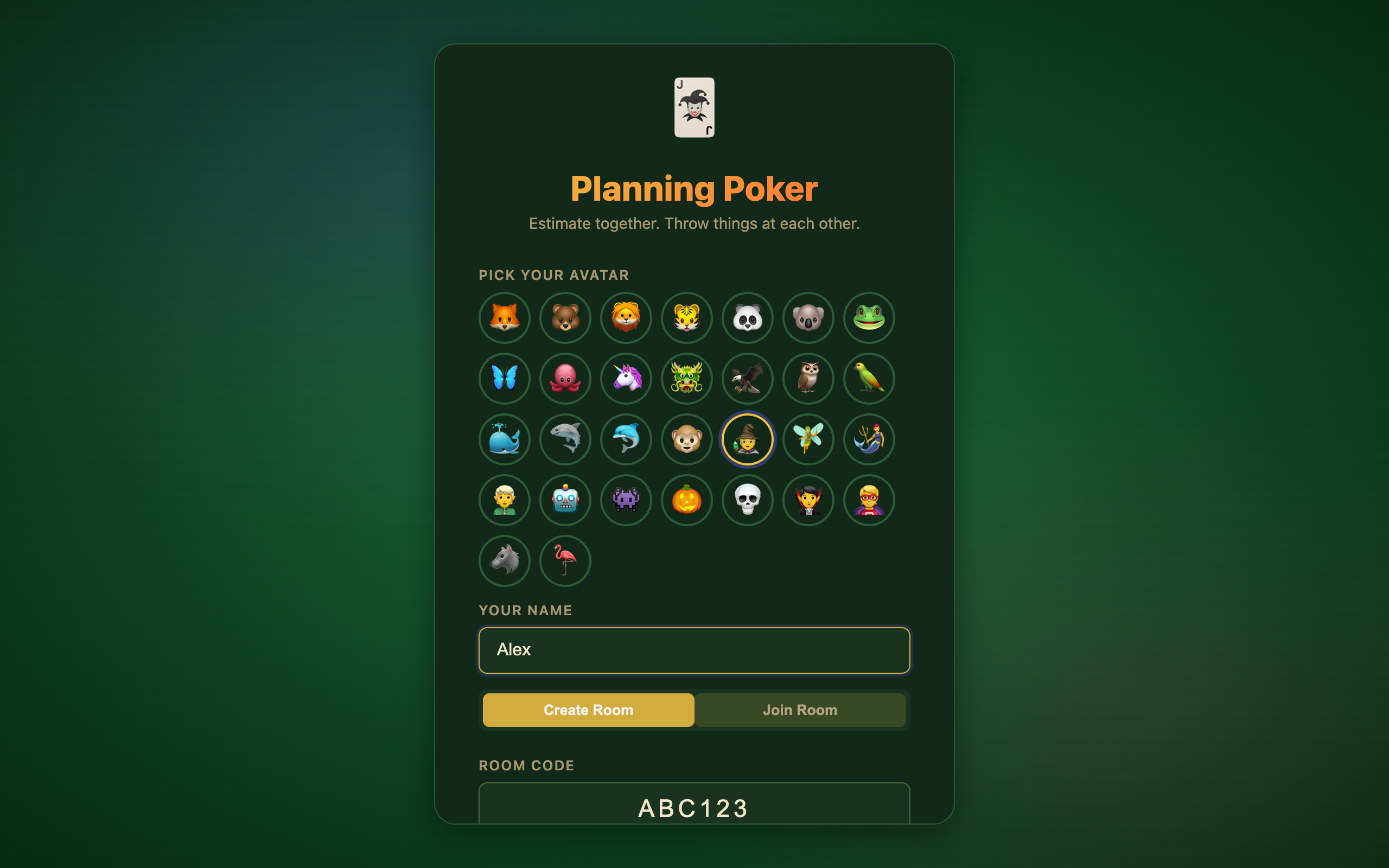
- Choose an avatar and enter your name.
- Click the Join Room tab.
- Enter the 6-character room code (or open an invite link like
?code=ABC123). - Click Join Room.
💡 The moderator can copy an invite link from the 📋 button next to the room code in the game header.
2. Moderator mode
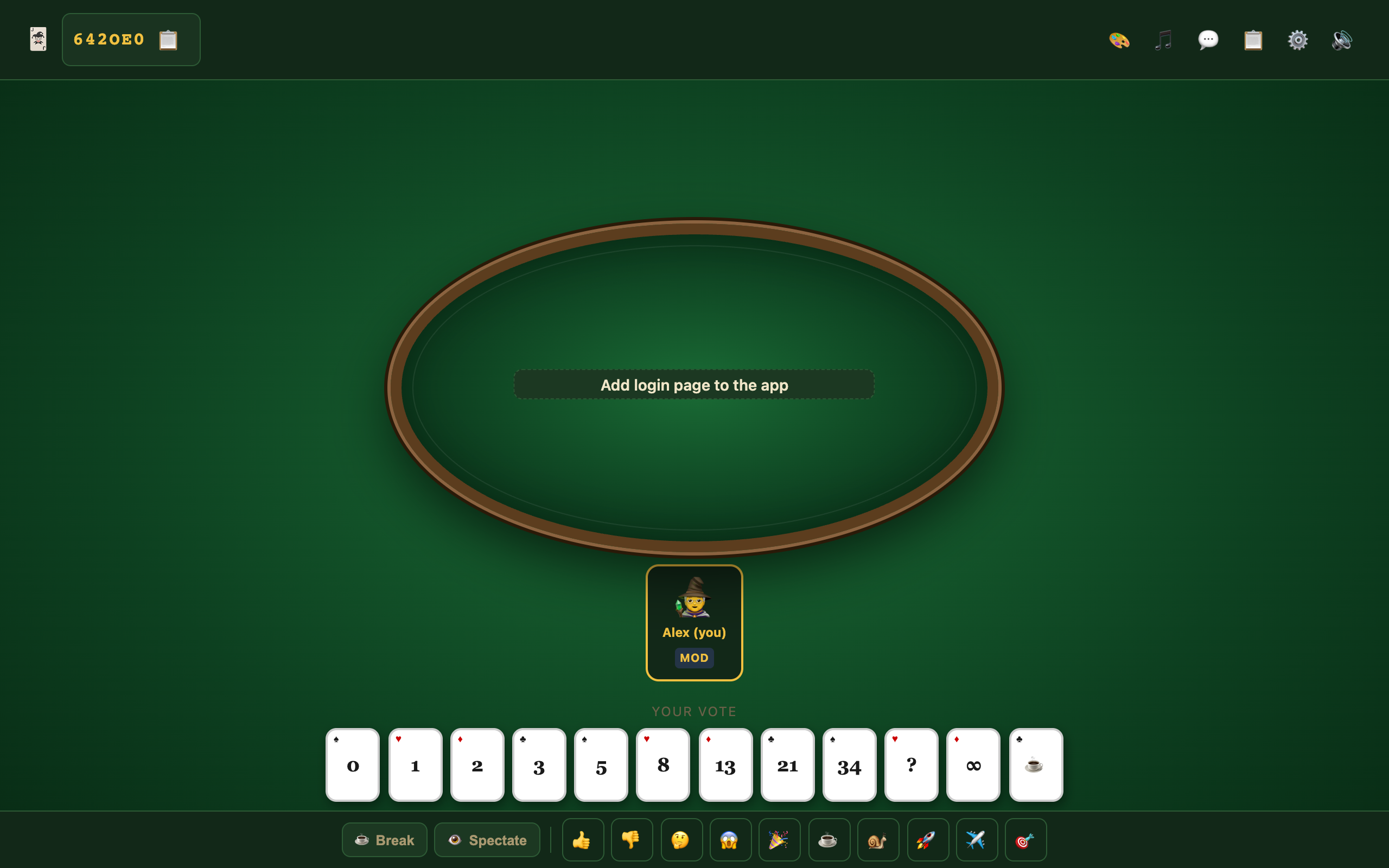
The person who creates the room is the moderator. You’ll know you’re the moderator when:
- Your player card shows a MOD badge.
- A ⚙️ gear button appears in the top-right header.
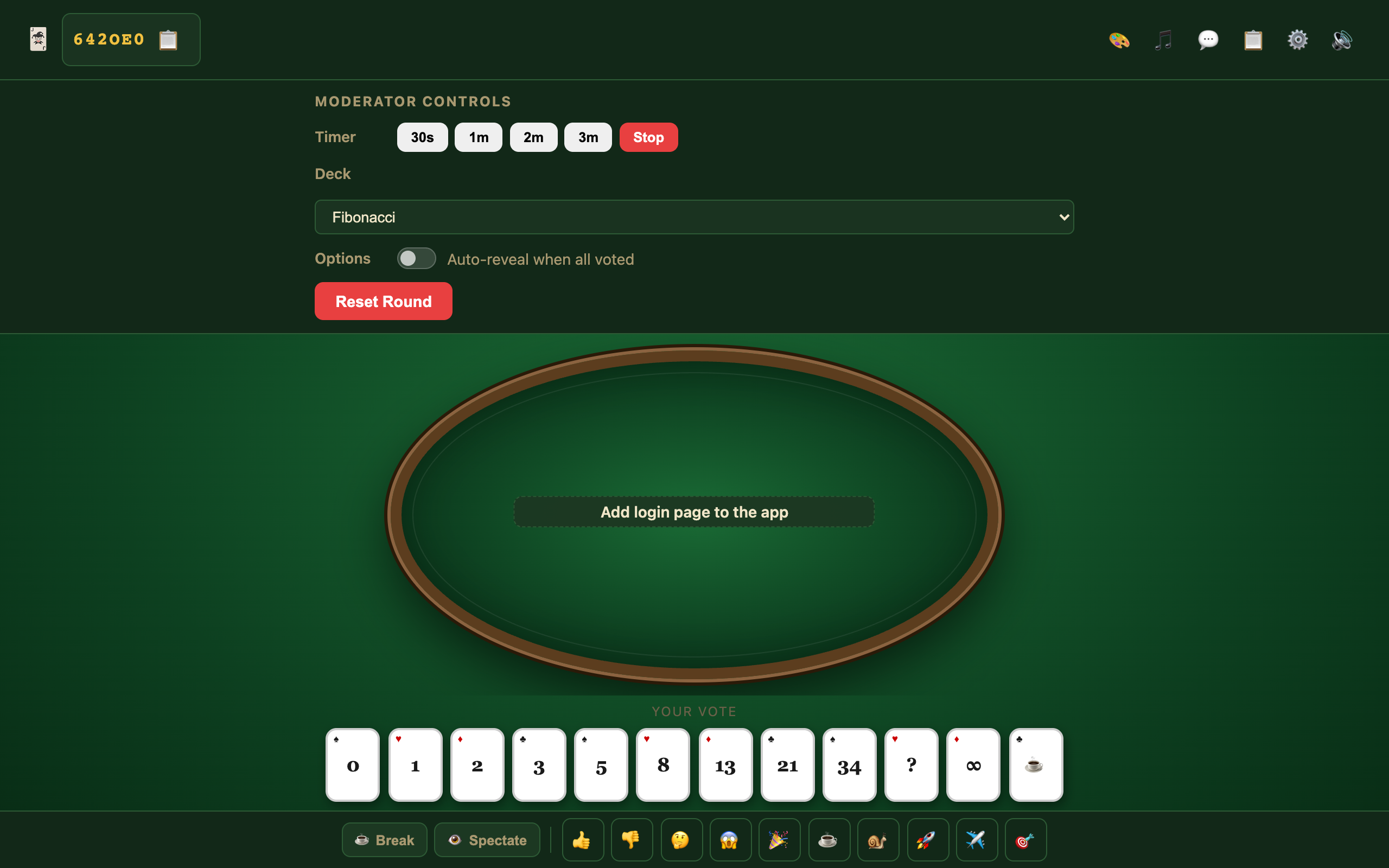
Click ⚙️ to open Moderator Controls:
| Control | What it does |
|---|---|
| Timer | Start a countdown (30s – 3m) for the round |
| Deck | Switch between Fibonacci and T-Shirt sizes |
| Auto-reveal | Automatically reveal when everyone has voted |
| Reset Round | Clear votes and start over (same story) |
Set the story
Click the story text in the center of the table (e.g. “Click to set the story…”) and type what the team is estimating. Press Enter or click away to save.
If the moderator leaves
Moderator role passes automatically to another player still in the room. That person will see a “You are now the moderator!” notification and get the ⚙️ button.
3. Select points (cast your vote)
Once you’re in a room, your voting cards appear at the bottom under Your vote.
- Read the story in the center of the table.
- Click the card that matches your estimate (e.g. 5, 8, M, ?).
- Your card highlights in gold. Other players see a ✓ on your avatar when you’ve voted — they do not see your number until reveal.
You can change your vote anytime before the moderator reveals — just click a different card.
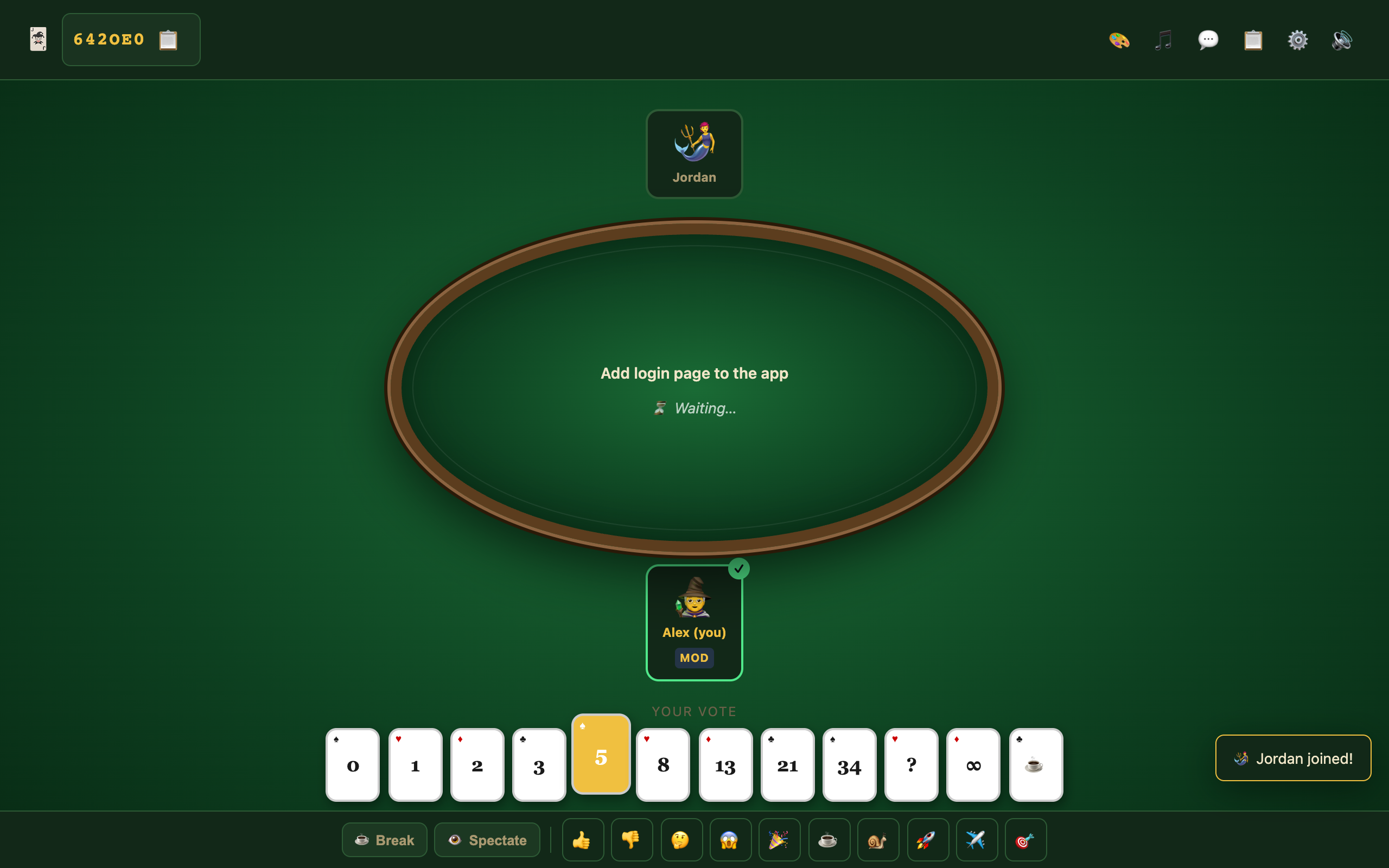
Not voting? Use 👁 Spectate or ☕ Break in the bottom bar to sit out of the current round.
4. Reveal points
Only the moderator can reveal votes.
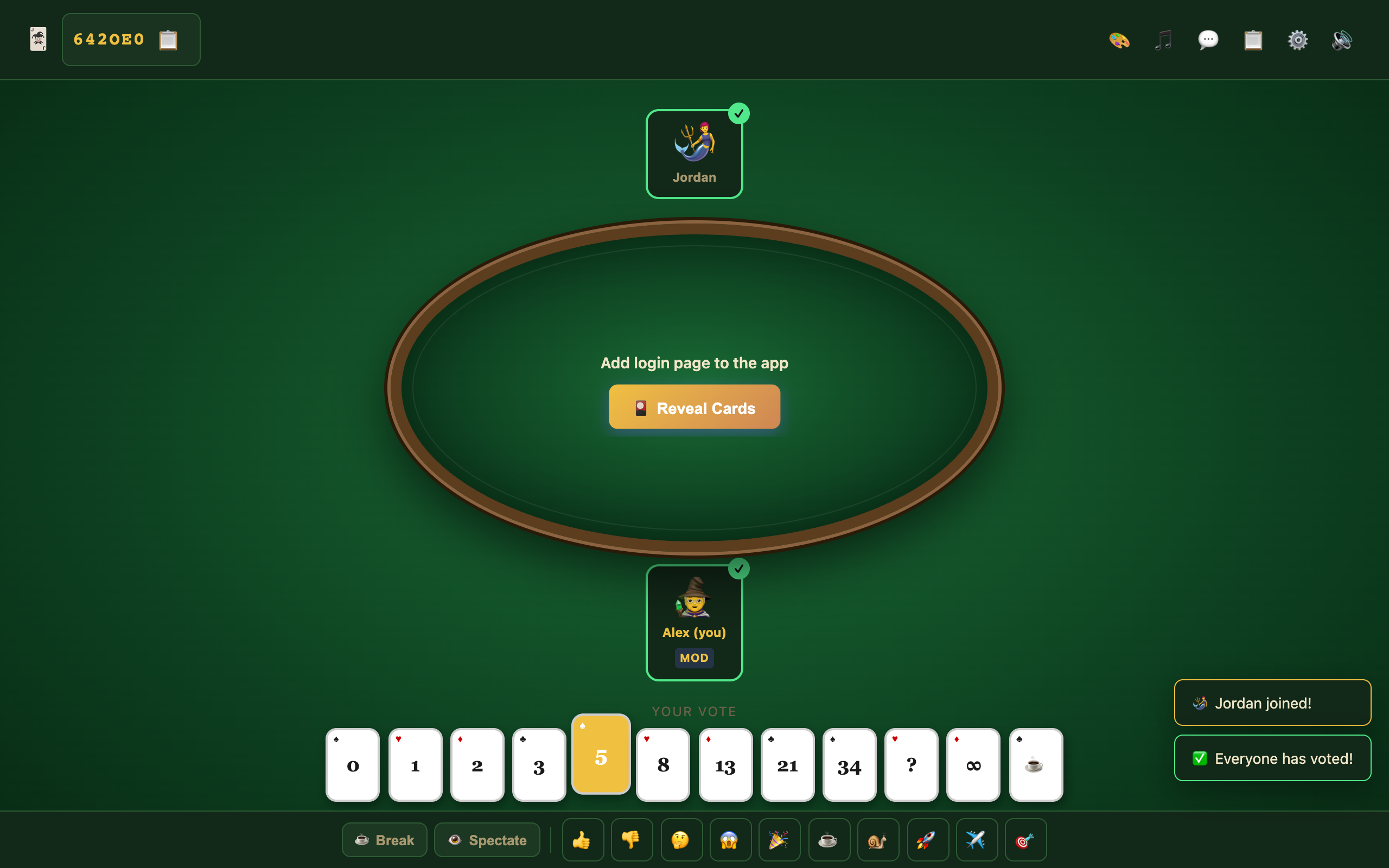
- Wait until everyone who is voting has picked a card (each voter shows ✓).
- The 🎴 Reveal Cards button appears in the center of the table.
- Click Reveal Cards.
All face-down cards flip over. The center panel shows the average, low, high, and whether the team reached consensus.
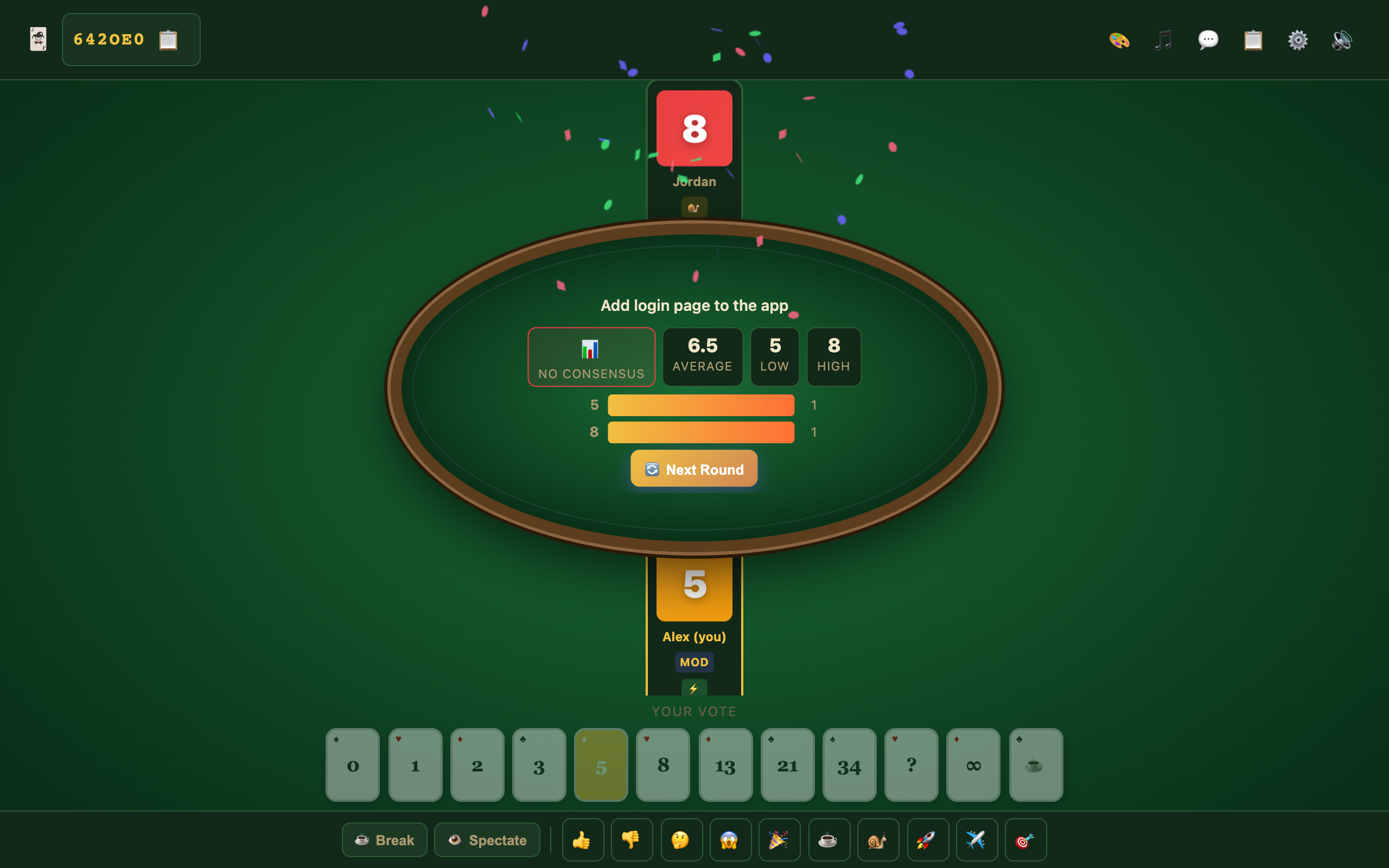
After discussing the results, the moderator clicks 🔄 Next Round to vote again on the same story, or ▶ Next Story if there are items in the story queue.
Quick reference
| I want to… | Do this… |
|---|---|
| Start a session | Create Room — you’re the moderator |
| Invite someone | Copy the link from 📋 next to the room code |
| Run the round | Set the story → everyone votes → Reveal Cards |
| Start over | Moderator: Reset Round in ⚙️ panel, or Next Round after reveal |
| Sit out | Click 👁 Spectate or ☕ Break |